What it does
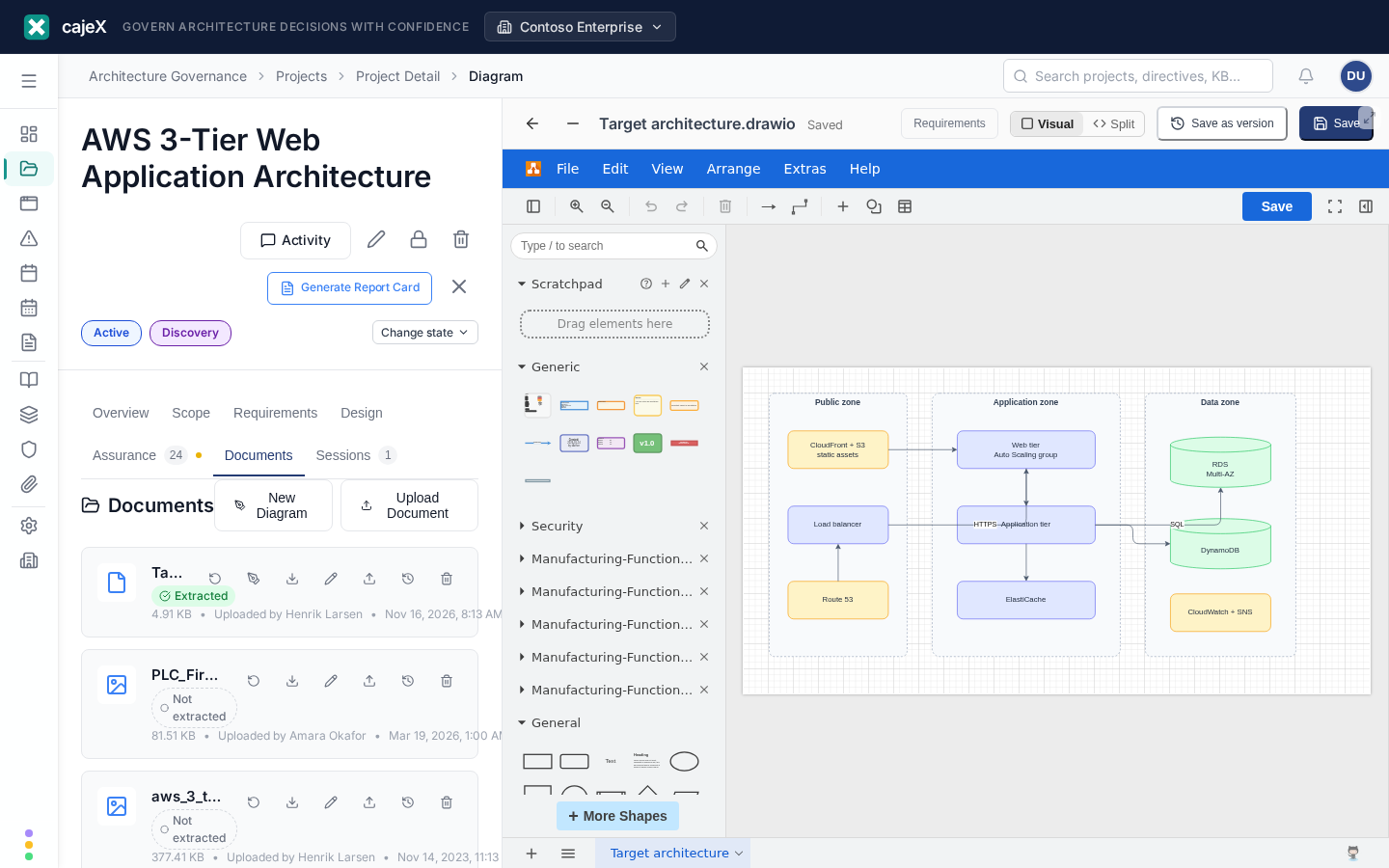
Draw and maintain architecture diagrams inside cajeX, stored as project documents instead of screenshots on someone's laptop. Diagrams (see Availability below) use the built-in draw.io editor, self-hosted by cajeX so your diagram content never leaves the platform. A diagram is a regular .drawio file in your project's Documents — it can be downloaded, renamed, versioned, and deleted like any other document, and it opens in the visual editor with one click.
The editor ships with cajeX shape libraries for enterprise and manufacturing architecture (ISA-95 functional levels L0–L4, security zones, and generic shapes) alongside draw.io's standard shapes.
How to use it
Creating a diagram
On a project's Documents section — or, when the Applications feature is enabled, on an application's Documents tab — click New Diagram, give it a name, and the editor opens on a blank canvas. The diagram is saved into that project's or application's Documents as <name>.drawio. Project diagrams suit target-state and change drawings; application diagrams suit the current-state architecture that outlives any single project.
Editing and saving
The editor takes over the full window. Two header controls manage the session: the Back arrow closes it (with a confirmation if you have unsaved changes), and Minimize parks it — the diagram stays open with its full undo history while you navigate cajeX, and a Diagrams chip in the top bar brings it back with one click. You can park up to three diagrams at once; with more than one, the chip becomes a dropdown showing each file with its project or application and an unsaved-changes dot. Opening a diagram that's already parked returns you to the existing session rather than opening a copy.
Two ways to save, both to the workspace:
- The Save button in the cajeX header (or draw.io's own Save / Ctrl+S — they do the same thing).
- Saving stores the diagram in the project document; there is no separate "save to my device" flow (use the Documents Download action to export a copy).
While you edit, cajeX continuously keeps a local draft on your device. If you close the tab or navigate away without saving, nothing is lost: reopening the diagram offers Restore draft. The draft is per-device — work you want teammates to see needs an explicit Save.
Versions
Save as version (next to Save) stores your current canvas as a new version of the diagram: the Documents list shows the newest, and earlier versions stay available under the document's Version History (downloadable like any document version). Use plain Save for ongoing work and Save as version for milestones — "as-reviewed", "before the migration", "approved target state".
Diagrams inform AI reviews and search
Saved diagrams aren't just pictures: cajeX distills each diagram's structure — its components, their properties, and the connections between them — into text that flows into global search and into AI review context (project reviews for project diagrams, application reviews for application diagrams). Draw the architecture accurately and reviews can reason about it.
If someone else saved first
Diagrams use a conflict check: if a teammate saved the same diagram while you had it open, your Save is refused and the editor offers two choices — Load their version (your work stays in the local draft) or Overwrite with mine.
XML source view
The Split toggle in the editor header opens the diagram's XML source next to the canvas — for power users who want to bulk-edit properties, paste fragments between diagrams, or inspect exactly what a shape carries:
- Both directions stay in sync: canvas edits update the XML as you draw; XML edits apply to the canvas shortly after you stop typing (invalid XML never touches the canvas — the panel tells you and the canvas keeps the last valid state).
- Selection follows you: click a shape on the canvas and the XML scrolls to its definition; click inside a shape's XML and the canvas selects and scrolls to that shape.
- Back to Visual hides the panel without losing anything.
Editing with the assistant
With a diagram open, the cajeX assistant (Genie) can edit it for you — open it with the genie button in the editor header: ask things like "add a firewall between the web tier and the database", "mark the payment service as critical" — or, on a manufacturing diagram, "re-route the historian feed through the DMZ". For technology domains (AWS, Azure, GCP, Kubernetes, Cisco) the assistant styles shapes with the official icon sets by default — ask for "plain shapes" if you prefer boxes. The assistant proposes the edit as a card — click Confirm and the change is applied to the open editor only (it can take up to a minute or two on large diagrams). Review the result on the canvas; use draw.io's undo if it's not what you wanted, and Save when it is. The assistant never saves the diagram itself.
Opening an existing diagram
Any .drawio file in a project's Documents shows an Open in diagram editor action alongside Download. Everything else about the file behaves like a normal document — rename, version history, confidential flag, delete.
Availability
Diagrams is on by default in every workspace: the New Diagram button and the editor action appear on project Documents (and on application Documents where the Applications feature is also on) for all members. A workspace owner or admin can turn Diagrams off, or back on, under Settings → Features → Diagrams. Turning it off keeps every diagram file as a document; they open again when it is turned back on.
Limits
- A diagram file can be up to 2 MB of diagram XML (very large — thousands of shapes).
- The editor is desktop-first; on small screens, view diagrams via the document download instead.