What it does
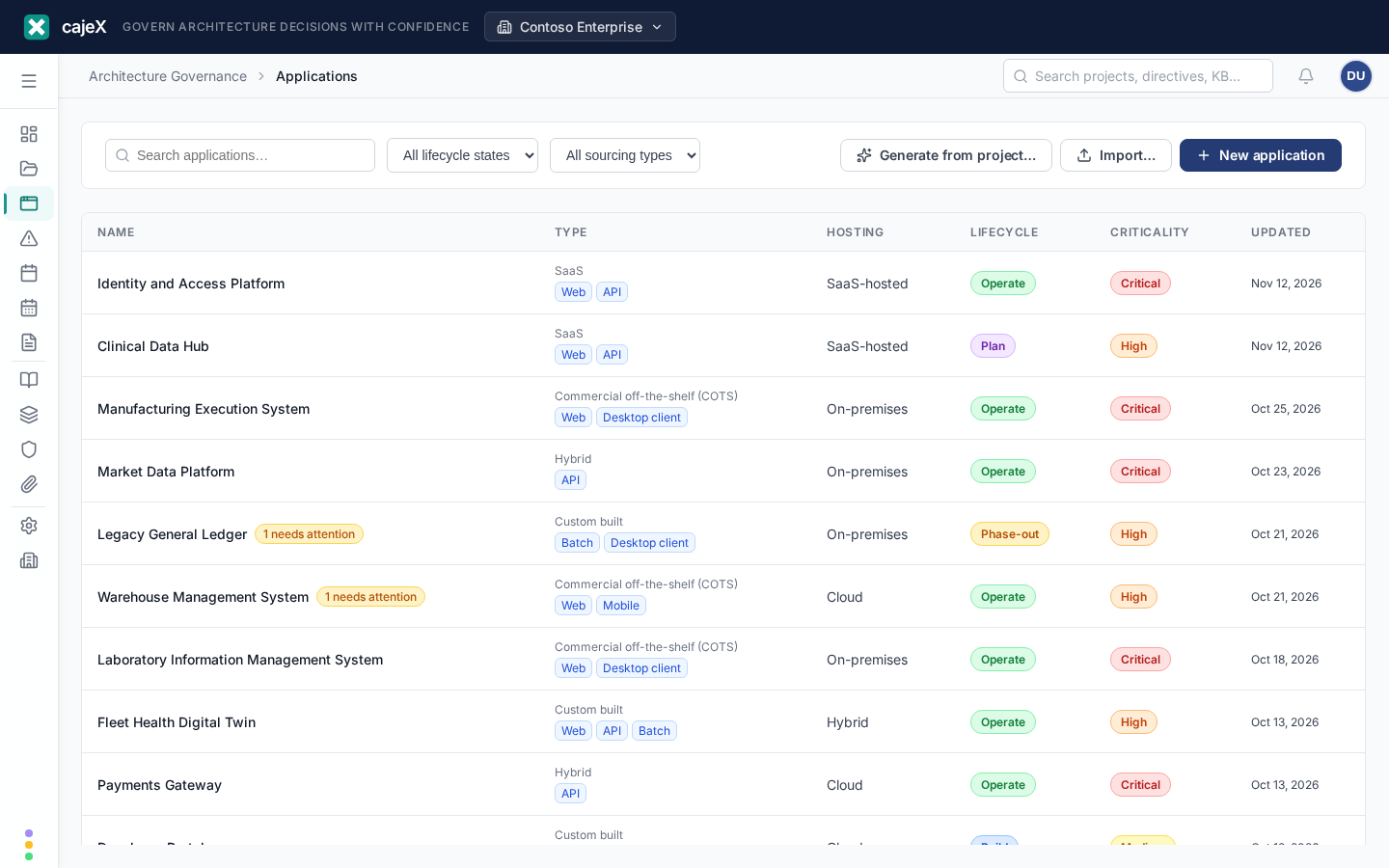
Projects come and go — the applications they build or change live on. The Applications screen (an optional feature — see Availability below) is a registry of the IT applications in your landscape: what each one is, how it's sourced and hosted, how critical it is, what data it handles, how it connects to other applications, and which projects have touched it over time.
Where a portfolio-management tool asks "what do we have and what does it cost?", cajeX applications answer a governance question: this is the durable record that a project's documents and decisions accrue to, so the next project touching the same application doesn't start blind.
How to use it
Registering an application
Create an application from the Applications screen (or inline from a project — see below). Beyond a name and description, an application carries three classification axes:
- Sourcing — who built and operates it: Custom-built, Off-the-shelf (COTS), SaaS, or Hybrid.
- Form factors — how it's delivered (pick all that apply): Web, Mobile, Desktop client, API, or Batch. A fat-client system with its own backend is still one application; a headless nightly settlement run is a Batch application even though nobody "opens" it.
- Hosting — where it runs: SaaS-hosted, Cloud, On-premises, or Hybrid.
Plus the facets governance cares about: lifecycle state (plan → build → operate → phase-out → retired), business criticality, data classification (public through regulated), an owner, and a team.
Generating applications with AI
Instead of typing records by hand, let cajeX draft them: on a project's Applications card (or from the Applications screen via "Generate from project…"), the AI reads the project's description and document list and proposes the application(s) the project builds or changes — pre-classified on all three axes, with a one-line rationale citing the evidence. If a proposal matches an application already in your registry, cajeX offers to link the existing record instead of creating a duplicate. Every proposal is a draft: review, edit if needed, and confirm — nothing is saved until you accept. It's also the fastest way to bootstrap the registry from your existing project history.
Linking applications to projects
On a project's page, the Applications card shows which applications the project delivers or touches. Link an existing application — or create one inline — with a role that says what the project does to it: Builds, Changes, Integrates, or Decommissions. Linking is optional, but it's what gives the application its history: the application's Projects tab shows every project that has touched it, with its role.
Interfaces and external systems
The Interfaces tab records how an application connects to others: a directional edge with a type — API, File, Event, Database, or Other. If an application talks to a system that's outside your governance scope (a partner's platform, a vendor system nobody in your organisation owns), register that system as an external application: a lightweight stub that exists only so the interface can be recorded honestly. External applications are badged, carry no governance data, and never appear in compliance views.
Decisions (ADRs)
The Decisions tab records Architecture Decision Records — the significant technical decisions made about the application. An ADR captures the context, the decision, and its consequences in one markdown document, numbered per application (ADR-0001, ADR-0002, …). Decisions are usually made during a project, so an ADR can carry its originating project as provenance — but it belongs to the application, where the next team will look for it.
An ADR starts as proposed. Accept or reject it; accepted ADRs are immutable — if the decision changes later, supersede it with a new ADR (the chain stays visible) or deprecate it.
What makes cajeX ADRs different is the directive link: while drafting, link the ADR to the directives it touches, with a relation — complies (the decision instantiates the directive), or deviates (it knowingly departs from it, with a mandatory justification). When you accept an ADR with a deviation, cajeX automatically raises a finding on the application's risk register: a deviation is a tracked exception, visible, reviewable, and closeable — not a note buried in a document. If the ADR is later superseded or deprecated, its exception findings are flagged for re-evaluation.
Findings on applications
Findings can belong to an application as well as to a project. A project finding that describes an enduring risk of the application itself — tech debt, an accepted risk, an unresolved non-conformity — can be transferred to the application (from the finding's detail view), keeping its full history. Projects can't be marked Completed while findings are still open: close, reject, defer, or transfer each one, so nothing is lost at handover. The application's Findings tab is its standing risk register, fed by transfers, deviation ADRs, and findings raised directly on the application. Confidential findings stay within their project and can't be transferred.
The Conformance tab
The Conformance tab is where the application's governance comes together. It shows:
- Applicable frameworks — from the frameworks your workspace has enabled, the ones whose scope applies per application (per-system standards like NIST 800-53, data-flow regulations like GDPR or HIPAA, transaction standards like PCI DSS). cajeX matches each framework's applicability triggers against the application's facets — its data classification, criticality, and tags — and explains every match ("matched
data-type:cardholder-databecause data classification is 'regulated'"). Frameworks without a match still appear, ranked lower, so nothing is hidden: cajeX recommends and explains; you decide. - Linked directives — the directives you've explicitly associated with this application, each showing its ADR relations (complies / deviates) and open findings. Browse a framework's directives and link the relevant ones, or link any directive directly. These links are the curated record of what this application is governed by.
- Risk register and evidence — the open findings summary and the count of living documents backing the posture.
Read against the architecture
Once a project has handed an architecture over, the tab answers two questions it could not before.
Architecture coverage. Of the elements on the promoted design, how many have a requirement attached — and the ones that have nothing are named, not just counted. A gap you cannot point at is not actionable. An unlabelled element still counts as a gap: an unlabelled box nobody has governed is, if anything, worse than a labelled one, because you cannot even say what it is.
Standing requirements, proven. How the application's standing requirements are doing against their tests: verified, failing, not yet proven, or with no test at all. Verified means every linked test actually passed — a requirement with two tests where one passed and one was never run reads not yet proven, exactly as it does on Assurance. The two screens use the same rule, so they cannot disagree in front of you.
Both sections stay hidden until there is something to say. An application before its first handover is a normal state, not an empty dashboard.
Frameworks reached through your architecture
If an element of this application's architecture is bound to another registered application, the frameworks that apply to that one are shown here too — separately, and always naming which neighbour caused it: "This application's architecture includes Payments, which matches this framework."
This is deliberately a weaker signal than a direct match, and it is presented as one. "My application calls the payments service" does not put it in PCI scope — with tokenisation or a redirect flow it may be precisely out of scope, which is the entire point of those patterns. So cajeX says what it found and who it came from, and leaves the judgement to you.
Two consequences worth knowing:
- It never widens AI review scope. A review seeded from this application still uses only its own facet matches and the directives you linked. An inherited match is something to consider, not something that silently changes what gets evaluated.
- It is one hop only. Only applications bound directly to elements of this architecture. Two hops and you would inherit half the estate, and the explanation would stop being checkable — which is the only thing that makes a recommendation worth showing.
A framework already matched directly is never repeated as inherited.
Application AI Review
The AI Review tab runs the cajeX AI Co-Worker against the application itself — the application-side counterpart of the Project AI Review. Where a project review evaluates the documents of a change, an Application AI Review evaluates the application's current documented state: its living documents (the Documents tab) plus its accepted decisions (ADRs). Deviations already recorded in an accepted ADR are treated as known, governed exceptions — the review references the ADR instead of re-flagging the same gap, unless the documented scope of the deviation has been exceeded.
By default the review scope is seeded from the application's governance: its linked directives from the Conformance tab plus the directives of every framework whose applicability triggers match the application's facets — the trigger dialog shows exactly where the scope came from ("Linked & applicable"), and you can switch to any other scope. If nothing is linked and no framework matches, it evaluates against all approved directives, narrowable by framework, category, or type just like a project review. Findings land on the application — they appear in its Findings tab as part of the standing risk register. External-system stubs can't be reviewed (they're ungoverned references, not governed applications).
Run one after a project hands over documents and decisions, or periodically (say quarterly) to check that the documented state still holds up against the directives that govern the application.
Application documents
The Documents tab holds the application's living documentation — current-state architecture, interface catalogues, runbooks. Project documents describe a change and stay with the project; documents that describe the application as it now is belong here. You can re-link a document from a project to its delivered application at any time (Documents → edit → link to application).
The handover step
When you complete a project that has both documents and linked applications, cajeX offers a document handover: each document gets a destination — keep on the project, or promote to one of the linked applications. Suggest with AI classifies the documents for you (current-state material like architecture and runbooks → promote; change material like migration plans and test reports → keep), with a one-line reason per document. The rule of thumb: describes the change → stays on the project; describes the application as it now is → promote it. The step is always skippable, and nothing moves without your confirmation.
Availability
Applications is off by default in every workspace. A workspace owner or admin can enable it under Settings → Features → Applications — enabling adds the Applications screen to the navigation for all members, and everything (including the assistant) starts recognising it. It can be disabled again the same way; application data is retained and reappears on re-enable.