What it does
Reports turns your governance record into something you can hand to someone: a report card for a project, and a clause-by-clause compliance report for a framework. Both are built from the live findings, directives and reviews, so they say what the workspace says.
How to use it
A project's report card
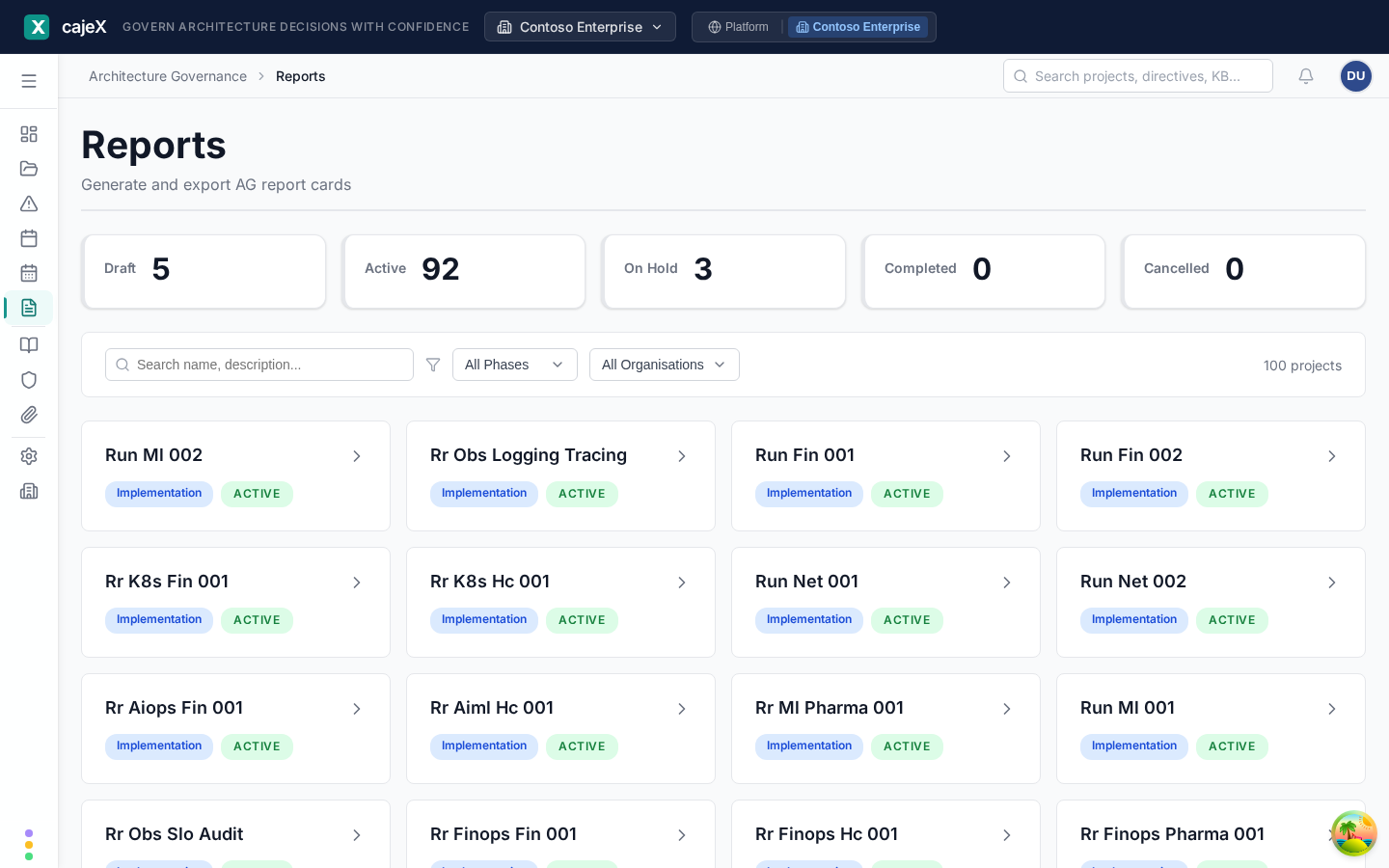
The Reports screen lists your projects, with tiles counting them by state and filters for phase and organisation. Click a project to generate its Architecture Governance Report Card.
The report opens with a Governance Scorecard: four areas, each rated red, amber or green, with one line saying why.
| Area | What it looks at |
|---|---|
| Risk | Open critical, high and medium findings against set thresholds |
| Directive compliance | How many evaluated directives are conformant and non-conformant |
| Finding resolution | The share of findings resolved |
| Review currency | How many AI reviews there have been, and how recent the last one is |
Below it, nine sections:
- Executive Summary
- Risk Assessment — the rating, and each condition with its threshold, the current count, and whether it triggered
- Critical & High Findings — title, status, category, owner, due date and age
- Findings by Category
- Directive Compliance
- AI Review Activity
- Session Activity
- Overdue Findings
- Metrics Summary
The thresholds are shown in the report, so a reader can see why an area is red without asking.
Saving and sharing
At the top of a report:
- Save Snapshot keeps a copy of the report as it is now. A snapshot does not change when the data does, which is what you want as a record of what was presented on a given day.
- Snapshots lists the saved ones for that project.
- Print, Export Markdown and Export PDF produce a copy to send.
A report you have just generated is live. If you are going to send it, save a snapshot first and export that, so the copy you sent and the record in cajeX agree.
Framework Compliance Report
Framework Compliance Report asks for one of the frameworks enabled in your workspace and shows, clause by clause, the directives written for each clause and where they stand. Read it on screen, print it, or download it as CSV.
Use it when the question is "where do we stand against ISO 27001?" and the project report card when the question is "where does this project stand?".
On a project
Generate Report Card is also on a project's own page, so you can produce the report without leaving the project.
Permissions
You can generate a report for any project you can see. A confidential project's report is available only to its team.
Tips
- For a steering committee, save a snapshot the morning of the meeting and send the PDF. Nobody wants to follow a live link during a presentation.
- The scorecard's one-line reasons are worth reading before the detail. "7 open High findings (>3)" tells you what would turn the area amber.
- Markdown export pastes cleanly into most wikis.