There is exactly one Owner per workspace. The Owner can do everything an Admin can do (see the previous chapter) and three more things, all of which are load-bearing: getting them wrong is costly to recover from. This chapter covers them carefully.
Changing plans
What it is (Owner only)
Upgrading or downgrading your workspace's subscription. Stripe payment authority belongs to the Owner — Admins can prepare an upgrade flow, but only the Owner can confirm and pay.
Picking a plan
The plans are Free, Basic, Pro, Team and Enterprise. What each includes (members, projects, the monthly AI budget per seat, how many frameworks you can enable, audit-log retention, single sign-on and the rest) is on the Pricing page, and Settings → Billing shows the same plans beside the one you are on.
Upgrading
- Settings → Billing → Change plan.
- Pick the new tier and the billing cadence (monthly or annual; paying annually saves about 17%).
- Review the prorated charge — Stripe charges immediately for the difference between today and your renewal date.
- Confirm. Payment goes through Stripe; the new plan's features unlock immediately.
Existing data is unchanged. Members, projects, directives, findings — all preserved.
Downgrading
Downgrades take effect at the next renewal, not immediately. cajeX warns you about anything that would be capped under the new plan:
- Member count over new cap → invitations halted; existing members keep access until you remove them. New invites blocked until you're under the cap.
- AI review quota lower → quotas drop at next renewal; in-flight reviews are unaffected.
- Locked features (e.g. SSO) → your existing config is preserved but inactive; re-upgrading restores it without re-onboarding.
Tips
- Annual billing is the most reliable cost lever. If your usage is steady, switch to annual at renewal.
- Don't downgrade two tiers at once if you can avoid it. Step down one tier at a time so you can spot which capped feature you actually rely on.
- For Enterprise, plan changes go through your account manager, not the self-service flow. Contact them well before renewal.
Invoices, payment details and refunds
Settings → Billing also shows your seats and your invoice history. Each invoice downloads as a PDF. Card details are changed in the billing portal, which opens from the same tab. If you need a refund, Request a refund sends the request with your reason; you are told the outcome by email.
A plan change that takes effect later, a downgrade or a cancellation at the end of the period, is shown on the tab as scheduled, with its date.
Transfer ownership
What it is (Owner only)
Transfer the workspace Owner role to another existing member. Common reasons: the original Owner is leaving, a workspace is being handed from a project sponsor to an operations lead, an org change re-parents the workspace.
How to do it
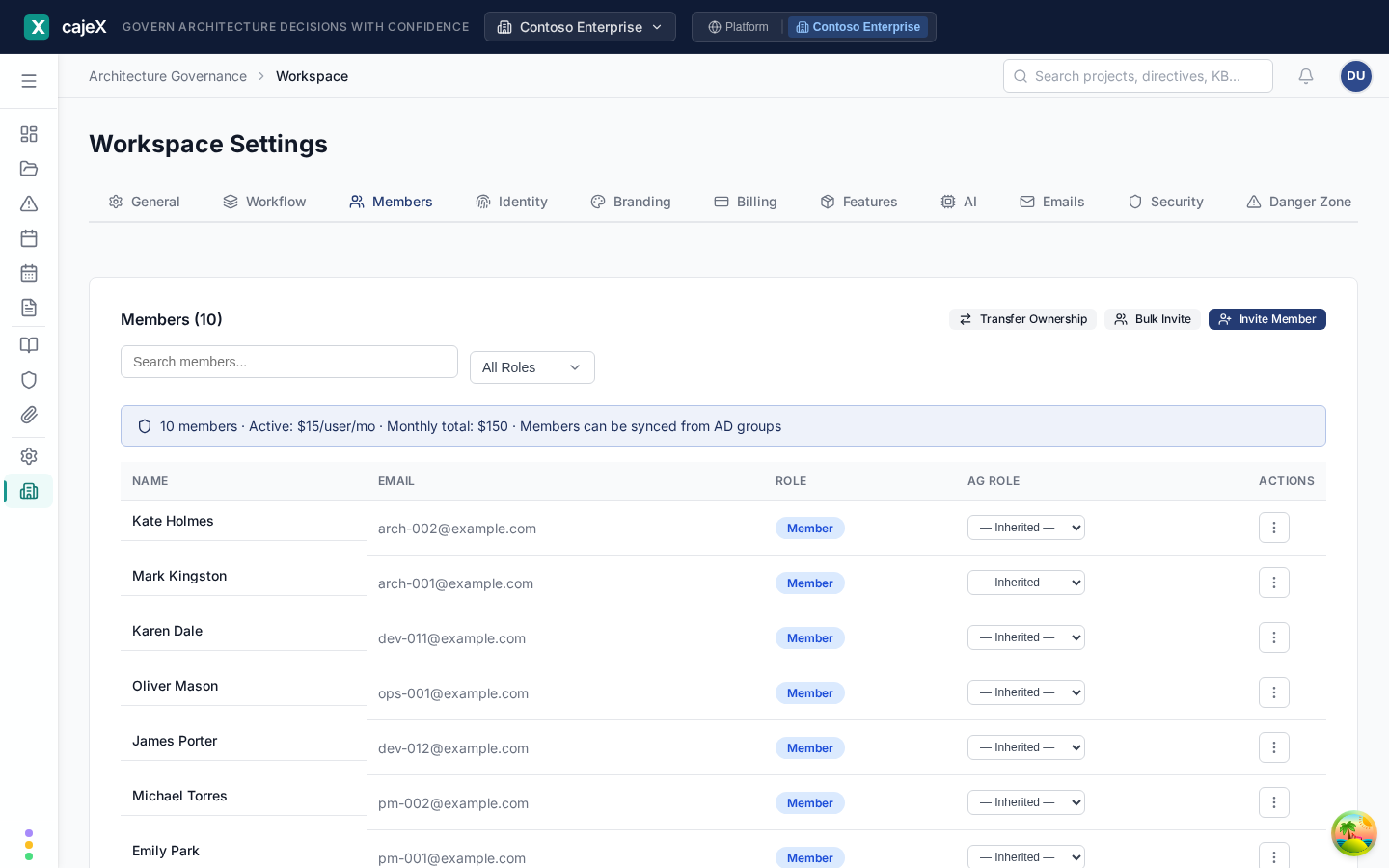
- Settings → Members → Transfer Ownership.
- Choose the new Owner. They must already be an Admin of the workspace; promote them first if they are not.
- Type their name to confirm. It guards against choosing the wrong person.
- Confirm. The transfer is immediate:
- The new Owner has Owner privileges.
- You become an Admin. You do not lose access.
- Only the new Owner can transfer ownership again.
Tips
- Coordinate the timing with the new Owner. They should be online and aware — billing notices go to the Owner from that moment.
- If the new Owner uses SSO and the IdP team hasn't given them the right group, they'll get Owner privileges in cajeX but the IdP group sync may demote them on next sync. Update the IdP group before you transfer.
- The transfer is logged in the audit trail.
Danger Zone
What it is (Owner only)
Workspace soft-delete. The most destructive action in cajeX, but designed to be recoverable: deletes are scheduled, not immediate, with a 30-day window during which the workspace can be restored.
How a deletion goes
- Settings → Danger Zone → Delete Workspace.
- Type the workspace name exactly to confirm.
- Confirm. The workspace is scheduled for deletion:
- All members lose access immediately.
- Its data is kept for 30 days. The Danger Zone tab shows how many days remain.
- A Cancel Deletion button appears on the same tab.
- After 30 days cajeX permanently deletes the workspace's data. This cannot be undone.
Cancelling a scheduled deletion
Within the 30-day window, the Owner can hit Cancel deletion at any time. The workspace comes back exactly as it was — members, data, billing — and the timer is gone.
Why this exists
Hard-delete with no recovery window is unrecoverable from any human error. The 30-day window is long enough that:
- A wrong-account deletion is caught on the next billing email.
- A staff turnover handover is finished before data disappears.
- A regulator can issue a hold notice if needed before purge.
Tips
- Before you delete, run an Export of the workspace. Even with the recovery window, an extra copy costs nothing.
- If you change your mind on day 29, that's fine — cancel and you're done. There is no penalty for deleting then cancelling.
- Once you hit day 31, support cannot restore the workspace. The data has been purged, including from backups.
Owner-only quick reference
| Action | Where | Reversible? |
|---|---|---|
| Change plan (upgrade) | Settings → Billing | Yes — change again at any time |
| Change plan (downgrade) | Settings → Billing | Yes, but takes effect next renewal |
| Transfer ownership | Settings → Members → Transfer Ownership | Yes — the new Owner can transfer back |
| Soft-delete workspace | Settings → Danger Zone | Within 30 days, yes. After 30 days, no. |
| Cancel scheduled deletion | Settings → Danger Zone | n/a — this is the recovery action |
If you're about to do anything in this chapter for the first time, take five minutes to read the section end-to-end before clicking. These actions move money or delete data, and the in-app confirmations are not a substitute for understanding what's about to happen.