What it does
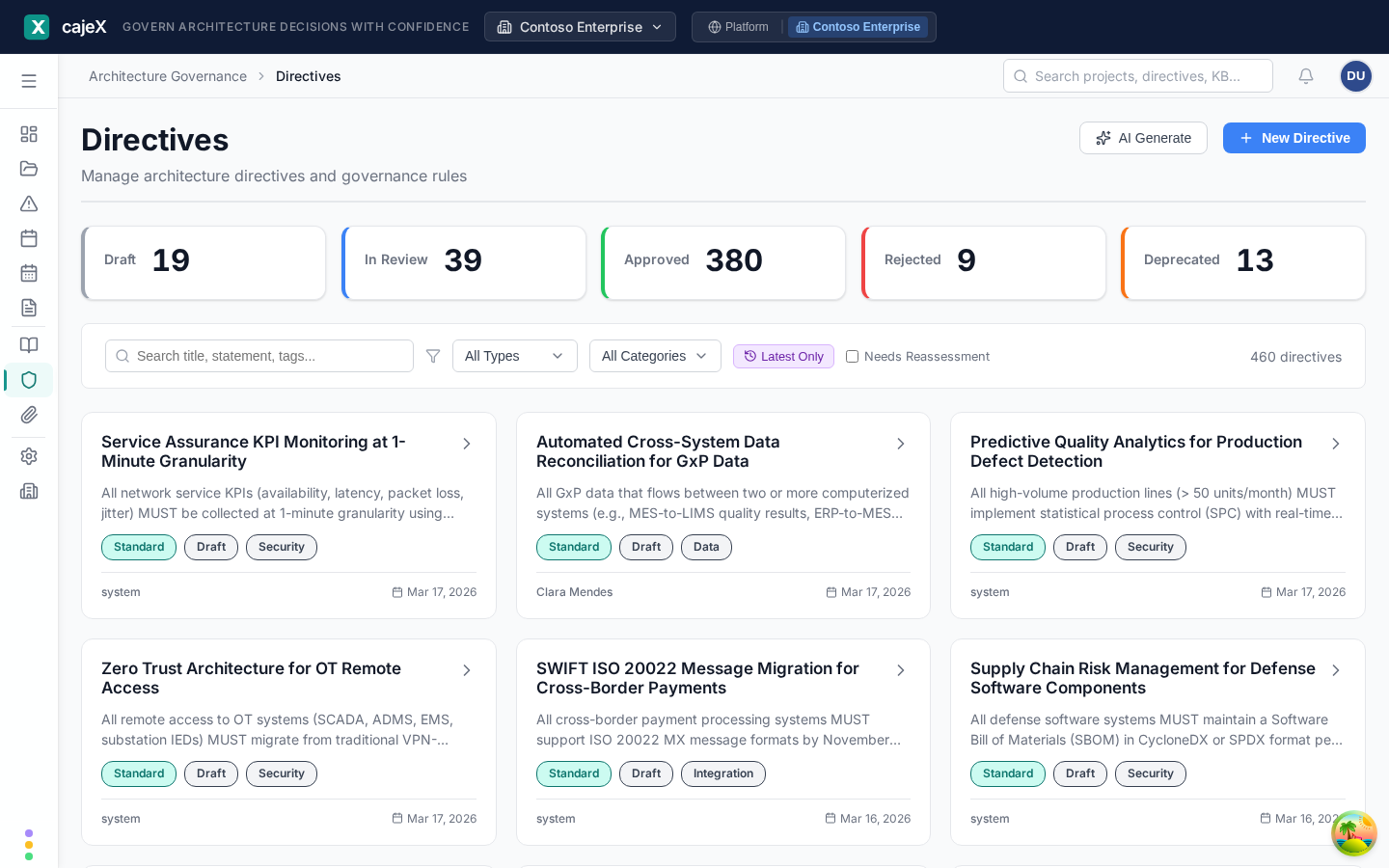
Directives are the centre of cajeX. A directive is one approved rule: short, specific, and checkable. The AI applies your approved directives when it reviews a project or an application, and every finding points back to the directive it is about.
Directives come from two places. Some you write, or have the AI draft from your knowledge base. Others arrive with a framework you enable from the catalogue, already written, one or more per clause.
Each directive has a type:
| Type | What it is | Example |
|---|---|---|
| Principle | A belief that sets direction | "Prefer managed services over self-hosted." |
| Decision | Your standard answer | "All inter-service auth uses mTLS with workload identity." |
| Guardrail | A hard line, checked at the boundary | "Public endpoints are fronted by a web application firewall." |
| Standard | The chosen tool or approach | "Use OAuth 2.0 with PKCE for third-party sign-in." |
| Pattern | A reusable shape for a solution | "Use the outbox pattern for cross-service writes." |
| Code Standard | A rule about how code is written | "Every public function has a unit test." |
and a category (Security Engineering, Data Governance and Privacy, Observability and Telemetry, and so on), shared with the knowledge base.
How to use it
Finding a directive
The list opens on Workspace directives: the ones your workspace wrote. The filters across the list are type, category and framework; choose a framework to see the directives that came from it, or clear the filter to see everything. Latest Only hides superseded versions, and Needs Reassessment shows directives flagged for another look. You can view the list as rows, cards or a table.
A lock on a card means the directive came from a catalogue framework. You can read it and review against it, but its wording is the catalogue's and cannot be edited here.
Opening a directive
Click a directive to open it beside the list:
- Statement — the rule itself.
- Rationale — why it exists.
- Implications — what following it means in practice.
- Conformance — whether it is being followed: conformant, partially conformant, non-conformant, insufficient evidence, or not yet evaluated, worked out from the findings raised against it and the latest reviews. Open findings against it are listed with the projects they belong to.
- Information — its ID, category, version, who created and approved it, and when.
- Activity — state changes and comments.
Writing a directive
Click New Directive and fill in:
- Type and Category.
- Title — a short name.
- Statement — the rule, in one or two sentences. Make it testable.
- Rationale — why.
- Implications — optional: what it changes for teams.
- Tags, and the Source Knowledge Bases it was distilled from, if any.
It is created as a draft.
Generating directives with AI
AI Generate drafts directives from your knowledge base in four steps:
- Select Sources — pick the KB entries to read. Filter by category to find them. Add instructions if you want.
- Review Results — read each proposed directive. Each comes with its type, category and a confidence.
- Analyze Relationships — the AI compares the proposals with each other and with your existing directives, and points out duplicates, overlaps and conflicts.
- Save Drafts — keep the ones you want. They are saved as drafts.
Generation runs in the background. A large source may produce more than one run's worth of drafts; the dialog tells you when that is so.
From draft to approved
A directive moves draft → in review → approved:
- Submit for Review when a draft is ready. From here its wording is locked.
- Approve makes it active, with a comment. From then on AI reviews apply it and findings can reference it.
- Reject sends it back, with a reason. A rejected directive has to be revised back to a draft before it can be submitted again, so the same text cannot simply be resubmitted.
cajeX never approves a directive for you. The AI drafts and explains; a person decides.
Changing an approved directive
An approved directive cannot be edited in place, because reviews have already been run against its wording. Instead, Revise (start v2) creates a new draft version. The current version stays in force until the new one is approved, and is then retired automatically. Findings raised against the old version keep pointing at the wording they were judged against.
Deprecate retires a directive without a replacement, with a comment saying why. Reactivate brings a deprecated one back as a draft, to be reviewed and approved again; it is refused while another version of the same directive is in force.
If a framework is retired from the catalogue, the directives your workspace took from it are deprecated with an explanation, and you can reactivate them.
Permissions
Everyone in the workspace can read approved directives. Creating, submitting, approving and deprecating depend on your role in the workspace and on the governance team you belong to; actions you may not take are not shown to you.
Tips
- One rule per directive. "Use mTLS for inter-service auth" is better than a paragraph that mixes authentication, encryption and logging.
- Write the statement so that a reviewer, human or AI, could say yes or no to it from a design document.
- Use Analyze Relationships before saving generated drafts. A second directive that says nearly the same thing as an existing one makes every review noisier.
- The assistant can help rewrite a draft, or move a directive through its lifecycle, and shows you the change before making it.