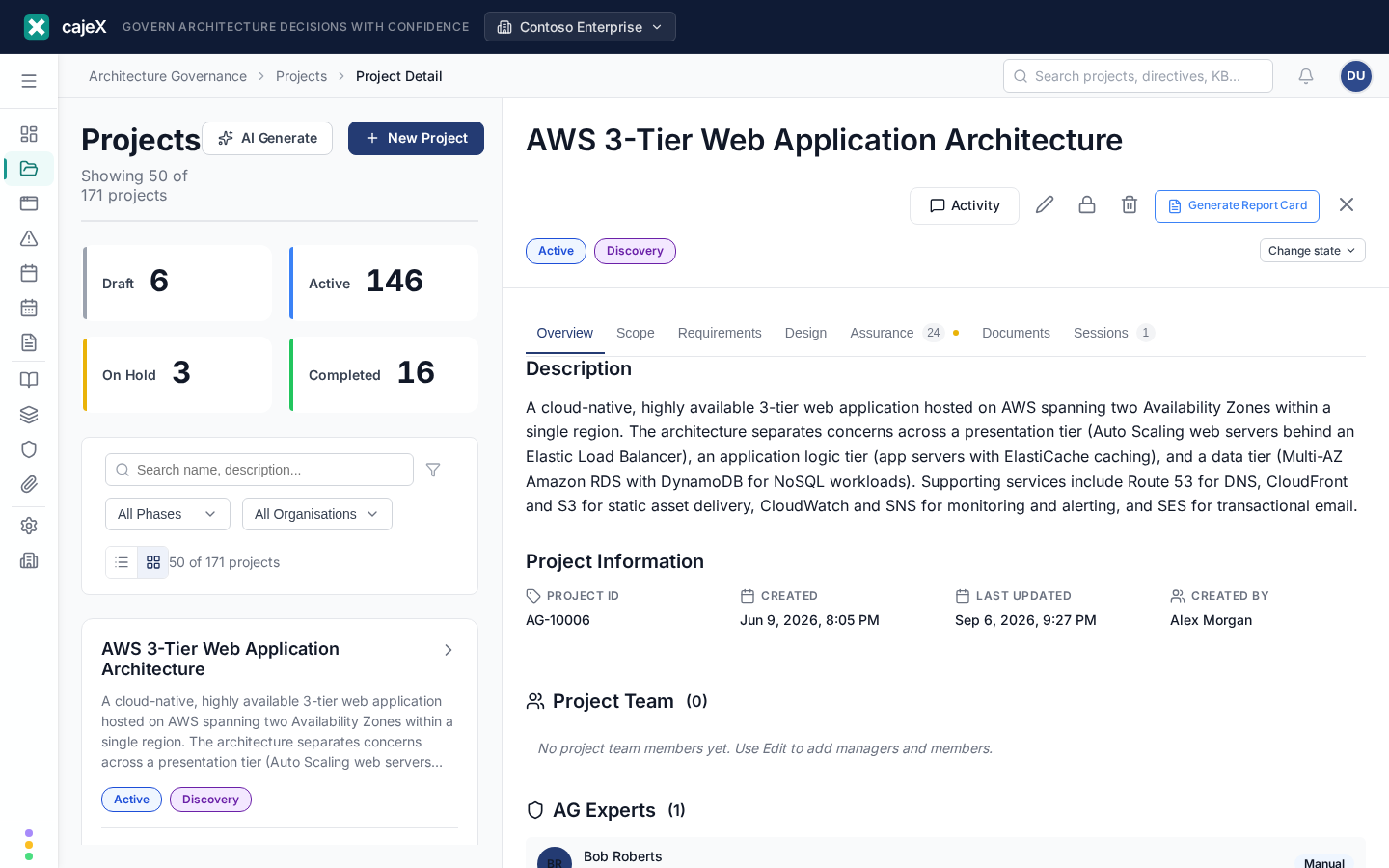
What it does
A project is anything you'd take to architecture review — a service proposal, an integration design, a data pipeline, a platform change. Projects in cajeX hold the proposal artefacts (text, diagrams, attachments), record the AI and human reviews run against them, and track the findings raised.
How to use it
Submitting a new project
- Click New project.
- Fill in the form:
- Title — short and specific. "Order service migration to event-driven" beats "Refactor".
- Summary — one paragraph that an architect would need to know what this is.
- Type — new system, change, decommission, integration.
- Scope — which governance areas apply (security, data, cost, etc.). Scope drives which directives the AI uses for review.
- Submitter and team — who's accountable.
- Attach material: design doc, architecture diagram, RFC, ADR, code excerpts.
- Save as draft if you're still putting it together, or Submit for review to kick off the AI review and request a session.
AI-assisted project authoring
If you don't have a design doc yet, click Generate from prompt. Describe what you're proposing in a few sentences and pick the governance areas; the AI drafts a structured project skeleton you can edit. This is asynchronous — watch the AI generation status panel for progress.
Project lifecycle
A project moves through these states:
Draft → Submitted → Under Review → Findings Open → Resolved → Closed
You can return to Draft from any pre-review state, but once a session has started against the project, edits are tracked as new revisions rather than overwriting.
Completing a project has two safeguards when the optional Applications feature is on: open findings must be closed, deferred, or transferred to an application first (the closure gate), and if the project has documents and linked applications you're offered a document handover — promote current-state documentation to the delivered application, keep change documentation on the project. Both explain themselves; neither moves anything without your say-so.
Review history
The project page is organised into tabs. Overview holds the description, project information, and the team. Scope is where you say what the project must conform to. Sessions lists the working sessions held. Assurance is where the AI review runs and the findings it raises sit together. Documents holds everything uploaded. Comments and the status history live in the Activity panel, opened from the top right — it slides in over the page so you can read the history without leaving the tab you were in.
Scope — what the project must conform to
The Scope tab answers one question: which directives does this project have to satisfy? It has three sources.
Inherited from applications. Link the applications the project builds or changes, and the project picks up their governance automatically — a project touching an application that handles regulated data inherits the directives of the frameworks that apply to it. Every inherited directive shows why it is there: which application, which framework, and which of the application's facets matched.
Added by you. Use Add directive to search the approved directives and add any others that apply.
Excluded. An inherited directive can be dropped, but never silently: cajeX asks why, keeps the directive visible with your reason next to it, and records the decision. That matters because "we decided this framework does not apply to this project" is exactly the kind of claim someone will ask you to justify later. Change your mind and Restore puts it back.
The scope is a starting point, not a restriction. It pre-selects the directives when you run an AI review, so a review is scoped to what actually governs this project instead of your whole catalogue — and you can still narrow it further, or pick something outside the scope, when you trigger the run.
Each tab shows a count of what it holds, and a coloured dot when something there needs attention — red when a finding is past its due date.
The detail view's Review history tab shows every AI review run, every session held, and every finding raised — in chronological order. Use it to answer "what changed since the last review?" and to make sure resolved findings stay resolved.
Permissions
- Members and above can create projects and submit them.
- Reviewers and above can run AI and human reviews against any project in the workspace.
- Admins can move projects between workspaces (rare, used for re-orgs).
Tips
- Submit early, even if the design isn't final. The AI is happy to review a 1-page sketch and the findings will guide your next iteration.
- Link related projects via the related field. Reports flag orphan projects that touch the same system without referencing each other.
- If a project keeps generating the same finding across reviews, it's usually a missing or unclear directive. Open the finding, follow it back to the directive, and improve the directive's code patterns.
Browsing for directives
Browse by framework opens a picker rather than making you type a name you half-remember.
The sources rail lists every framework applicable to your workspace, and every custom framework, with how many of your own directives came from each. That count is the navigation: a framework showing 0 tells you not to look there. Add by name is still there as the fallback when you know exactly what you want.
Filters combine — framework, free text, type and category all narrow together. Tick as many as you like and add them in one go. The result says what was added and what was skipped and why: silence about a skipped directive is how you come to believe your scope contains something it does not.
Rows are not all the same, because scope has three layers:
- Something already in scope is shown but inert — there is nothing to add.
- Something inherited from an application says so. Adding it pins it: inheritance moves when that application's classification or criticality changes, and a directive you chose does not.
- Something you previously excluded shows the reason you recorded, and takes a second, deliberate click to re-include. Reversing a decision that has a name on it should never be a side effect of ticking a box in a list. Select all shown deliberately skips these.
Only your workspace's own approved directives are browsable here. The platform catalogue is not, and nothing is copied from it.