What it does
A finding records that something about a project or an application does, or does not, follow one of your rules. Findings come from three places:
- AI Review raises them when it checks a project or application against your approved directives.
- People raise them, during a session or at any time.
- Decisions and tests raise them: accepting a decision record that deviates from a directive, a failed verification test, or selecting a design that misses a must-have requirement.
Every finding has a category, a severity, a state, an owner, and a history of every change made to it. Where it is about a directive, it says which one, and which framework clause that directive answers.
| Category | What it means |
|---|---|
| Nonconformity | A direct departure from an approved directive |
| Observation | A choice that deserves a closer look |
| Opportunity | A better pattern or approach may apply |
| Risk | A possible source of debt or exposure |
How to use it
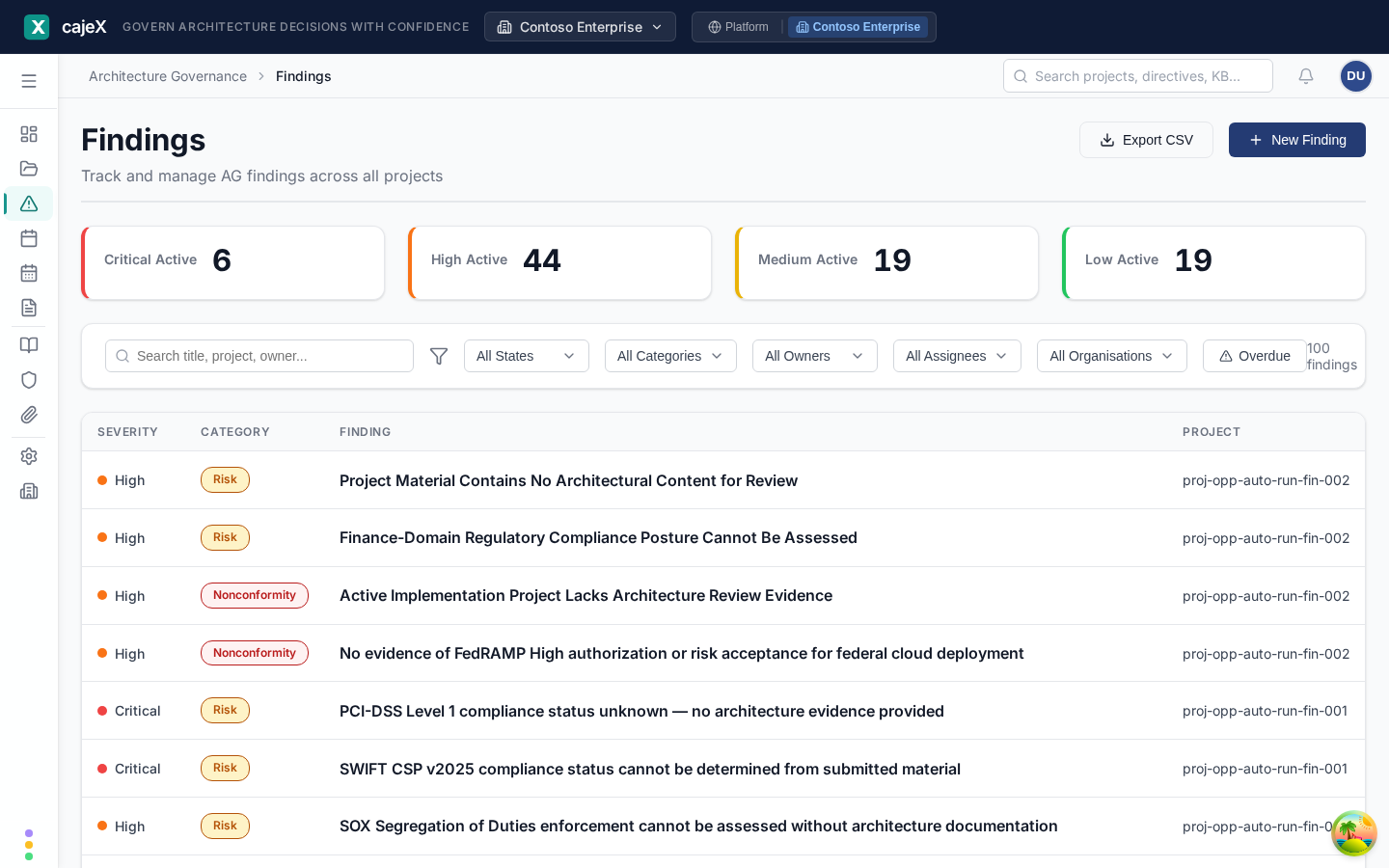
The findings list
The tiles across the top count active findings by severity: Critical, High, Medium, Low. Click one to see only those.
Filter by state, category, directive, owner, assignee and organisation, or press Overdue for findings past their due date. Filtering by directive is the quickest way to see every place one rule is being broken.
Show the list as rows, cards or a table. Columns chooses which columns the table shows; your choice is saved to your account. Export CSV downloads what the current filters show.
Reading a finding
Click a finding to open it beside the list:
- Chips at the top give its state, severity and category, and whether the AI generated it.
- The trail shows the framework, the clause, and the directive the finding is about. Click the directive to read the rule.
- Project, severity, owner, assignees, due date and when it was created.
- Description — what was found.
- Evidence and Recommendation — what the review read, and what it suggests doing.
- Follow-Up Actions, Attachments, and Activity: every state change, edit and comment, in order.
Working a finding
The buttons under the chips are the moves allowed from the finding's current state. You are only ever offered a valid one.
| From | You can |
|---|---|
| Open | Start Work, Defer, or Reject |
| In Progress | Submit for Verification, Reopen, Defer, or Reject |
| Pending Verification | Close, Reopen for Work, or Reject |
| Deferred | Reactivate, or Reject |
| Closed or Rejected | Reopen |
Three rules are worth knowing:
- A finding is closed only from Pending Verification. Someone does the work, submits it, and it is then confirmed.
- Closing, rejecting and reopening need a comment. The reason is part of the record.
- Nothing is a dead end. A closed or rejected finding can be reopened, with a comment saying why.
Use the pencil to edit a finding's title, description, severity, owner or due date. Edits appear in its Activity.
Raising a finding
Click New Finding. Choose the project, a category and a severity, write a title and a description, and set an owner and a due date. Link the directive it is about if there is one: a finding with no directive is harder to act on and does not count toward any directive's conformance.
Findings that outlive a project
Some findings describe the application, not the change: technical debt, an accepted risk. With Applications turned on, a finding can be transferred from its project to an application, keeping its history. A project cannot be completed while it has open findings, so each one is closed, rejected, deferred or transferred first. See Applications.
Permissions
Everyone in the workspace can see findings on the projects they can see. Findings on a confidential project are visible only to that project's team. Changing a finding's state needs permission to manage findings; if you do not have it, the buttons are not shown.
Tips
- A directive collecting many findings across projects is telling you something about the directive. The Dashboard's Top Directives by Open Findings shows which.
- Write the closing comment for the person who will read it in a year. "Fixed" says nothing; "replaced the shared key with short-lived tokens, verified in staging" does.
- Findings with no directive are a backlog of rules you have not written yet.
- The assistant can summarise a project's findings, tell you what is overdue, and propose a state change or a due date for you to confirm.