Sessions
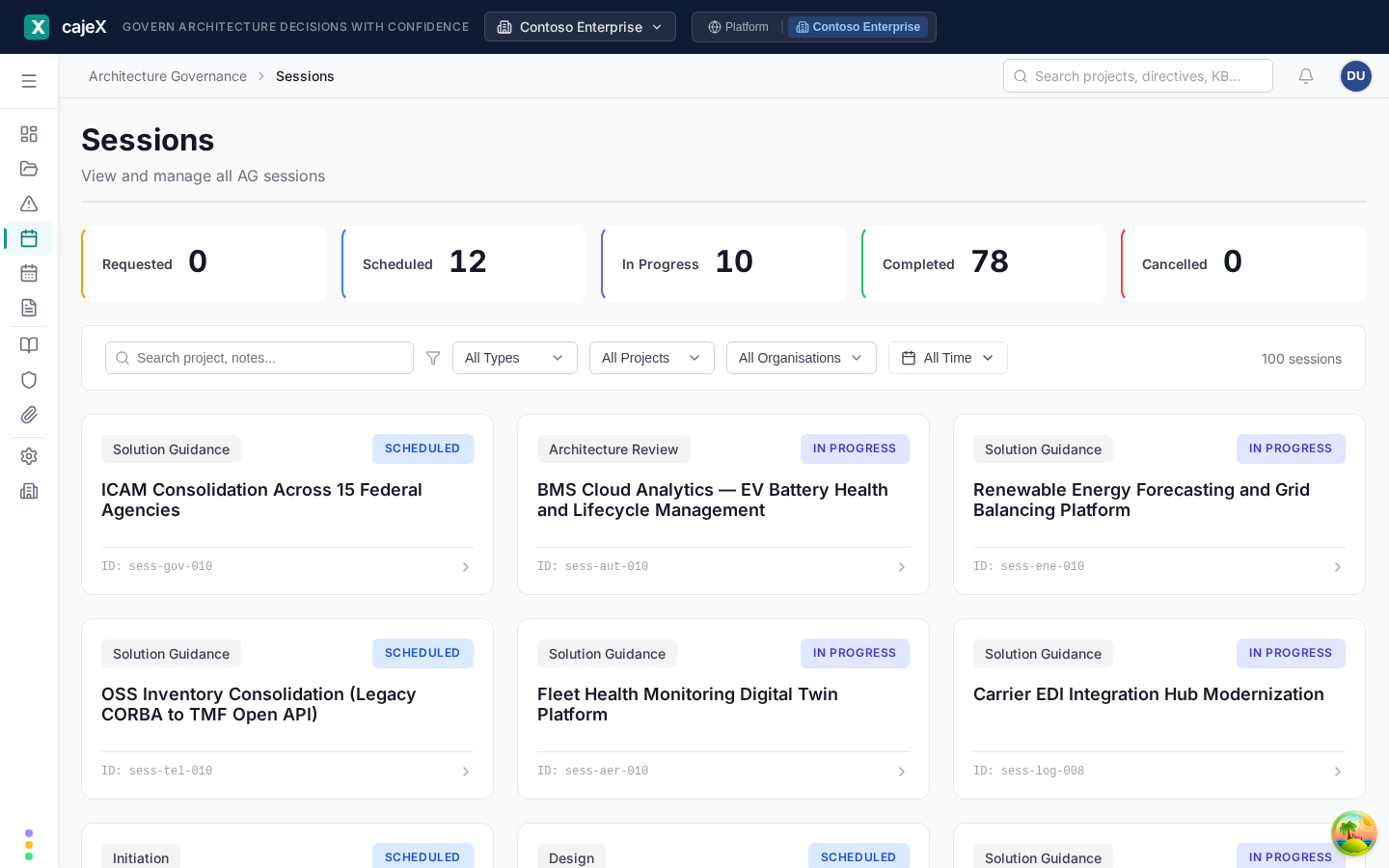
What it does
A session is a scheduled, structured architecture review. Each session is built from a workflow template — Governance Standard, Agile Sprint, or Minimal Review — that defines the phases, the participants, and the gates the review must clear before closing.
Sessions are how the human side of governance happens in cajeX. The AI Review surfaces machine-checkable findings; sessions are where humans discuss, decide, and sign off.
How to use it
Booking a session
- Click Request session.
- Pick the project to review.
- Pick a workflow template:
- Governance Standard — the full template (intake, AI review, human review, decision, sign-off).
- Agile Sprint — lighter, designed to fit a sprint cadence.
- Minimal Review — single phase, used for low-impact changes.
- Pick a slot from the calendar. Available slots come from your workspace admin's calendar configuration.
- Add participants (reviewers, stakeholders, observers).
- Submit. Participants get an email invitation; the session shows up in everyone's Calendar.
Running a session
The session detail view is a state machine. As facilitator you walk it through:
Draft → Scheduled → In Progress → Findings → Decision → Completed
In each phase, the relevant work surfaces inline:
- In Progress — AI review results and the directives in scope are pinned at the top.
- Findings — every finding raised in this session, with owner and severity.
- Decision — the outcome (Approved, Approved with conditions, Rejected, Deferred). Conditions become tracked findings owned by the project submitter.
- Completed — locks the session record. The decision and findings are now part of the audit trail.
Permissions
- Members and above can request sessions for their own projects.
- Reviewers and above can facilitate sessions and move them through phases.
- Admins can create and edit workflow templates (Admin → Terminology, see Terminology).
Tips
- Pick the lightest template that fits. "Minimal Review" exists for a reason — using Governance Standard for a config tweak burns goodwill.
- Pin AI-Review findings to the session before the meeting so participants can pre-read.
- The session decision is what shows up in Reports. Be deliberate about wording — "Approved with conditions" should list the conditions explicitly.
Calendar
What it does
The Calendar is the workspace's shared review schedule. It shows every booked session, available slots, and conflicts — for the whole workspace, not just you.
How to use it
- Week view is the default. Use the date navigator to move forward or back.
- Available slots come from your workspace admin's recurring slot configuration. If your workspace shows no slots, ask the admin to set them up under Automation.
- Click a session to open its detail view.
- Click an empty slot to start a session request prefilled with that slot.
Permissions
- Visible to everyone in the workspace.
- Slot creation is admin-only.
Tips
- Subscribe to the calendar feed (link in the calendar header) to mirror cajeX sessions into your own calendar tool.
- If a session is private to a stakeholder group (e.g. exec review), the calendar shows it as a busy block without details to non-participants.